The Kenya National Examinations Council, Knec, uses the CP2 online portal to manage the thousands of Contracted Professionals who administer the National Examinations. To easily check your Kenya National Examinations Council (KNEC) deployment status and download your supervisor or invigilator letter, follow these steps:
Step 1: Access the KNEC Contracted Professionals Portal
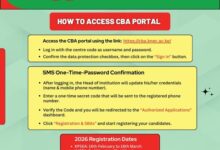
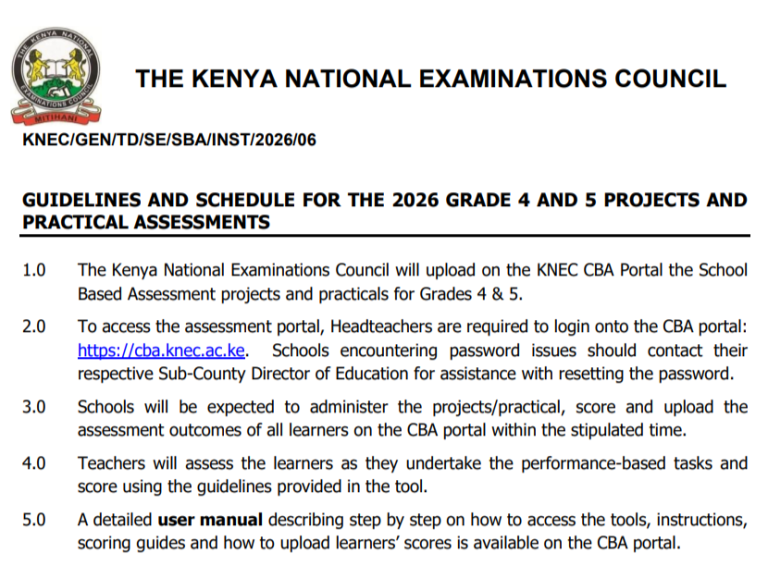
First, visit the official KNEC portal for contracted professionals via this link: https://cp2.knec.ac.ke. This portal is where all deployment information for contracted professionals such as invigilators, supervisors, and center managers is posted.
Step 2: Log into the Portal
For Center Managers: Use your KCSE Centre code as your username and the unique password associated with your school or center.
For Contracted Professionals: Enter your login credentials, which include your username and password. If you are a first-time user, ensure you have completed your registration on the portal.


Step 3: Check Your Deployment Details
Once logged into the system, click on the “Dashboard” tab, which will show you the details of your deployment. This includes:
The examination you are assigned to.
Your duty station (school or center where you are posted),
The position you will hold (e.g., Supervisor or Invigilator).
You can also verify other personal details like your KRA PIN, telephone number, highest qualification, and the sub-county where you are posted. It is essential to ensure that all information is accurate before proceeding.
Step 4: Download Your Appointment Letter
In the deployment section, a table will display your exam, duty station, and position. Under the “Actions” column, click the “Download Appointment Letter” link to download your official deployment letter. You can print or save this letter for future reference.
Step 5: Resetting Your Password (If Forgotten)
If you have forgotten your password, resetting it is straightforward:
1. On the KNEC portal, click the “Forgot Password” option.
2. Enter your phone number in the format 2547xxxxxxx.
3. You will receive a reset password via SMS, which you can use to log into the portal and access your account.