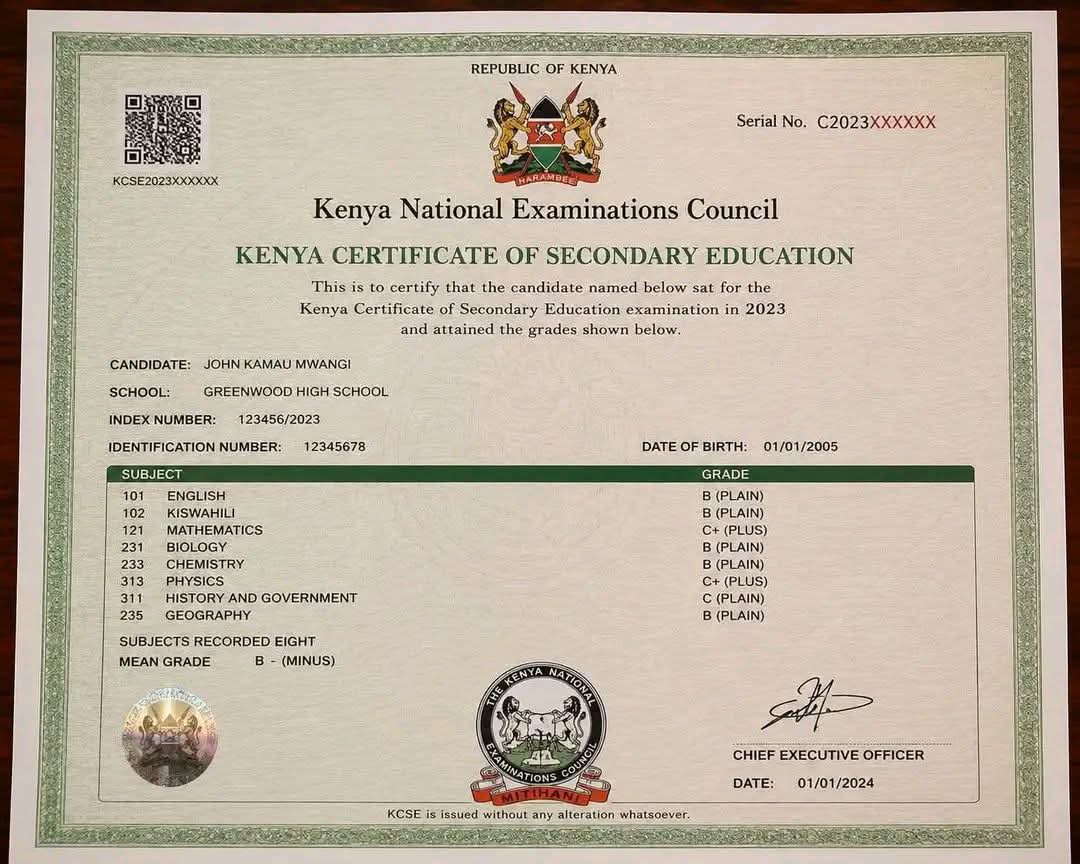
How to Download Your KCSE E-Certificate: Step by step procedure:
Downloading your KCSE Certificate is now easy and online. Here is your simplified guide:
1. Register an Account
* Visit KNEC certificate portal ( ecertificate.knec.ac.ke )
* Click Sign Up / Register.
* Select Applicant (Student/Alumni).
* Enter your full name and email address.
*Click Send OTP and enter the 6-digit OTP sent to your email to complete registration.
2. Log In
* Click Login on the homepage.
* Enter your registered email address.
* Request an OTP.
* Enter the OTP to access your dashboard.



3. Complete Your Profile
Fill in the following details:
* Citizenship (Kenya or Other Country)
* Full name (as it appears on your National ID)
* Email address
* Date of birth
* Phone number
* National ID number (for Kenyan citizens)
* Profile photo (optional)
Review all the information before submitting. The system will automatically verify your identity against the Integrated Population Registration System (IPRS). Verification is usually completed within a few seconds.
4. Generate Your E-Certificate
From your dashboard, click Generate E-Certificate.
Provide the following details:
* Your examination Index Number
* Examination Type (KCSE or KCPE)
* Examination Year (1989 to present)
Your name, date of birth, National ID number and phone number will be automatically filled from your profile.
5. Verification
The system automatically performs two checks:
* Identity verification through IPRS to confirm your name and date of birth.
* Certificate lookup in the KNEC database to confirm that a certificate matching your index number, examination type and year exists.
Both checks must be successful before you can proceed.
6. Make Payment
After successful verification, proceed to payment through eCitizen.
Charges shown in the user guide are:
* Certificate generation fee: KSh 1,200
* VAT: KSh 250
* eCitizen service fee: KSh 200
* Total payable: KSh 1,450
You can pay via:
* M-Pesa (STK Push)
* Any other payment method available on eCitizen
Payment confirmation usually takes between 10 and 30 seconds.
7. Download Your E-Certificate
Once payment is confirmed:
* Click Download Certificate.
* The certificate will open as a PDF in a new browser tab.
* The PDF includes a blockchain verification hash to confirm its authenticity.
Note:
Generated certificates remain available for download under My Certificates for six months from the date of issue. After six months, the download option is disabled.
To obtain another downloadable copy after this period, you must generate a new certificate and pay the applicable fee again.