How to create TPAD 2 account and fill TSC data online
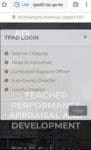
The new TPAD 2 login window.
Did you know that creating your new TPAD 2 account in the Teachers Service Commission, TSC, portal is a simple process? Well, creating your own account at the Teacher Performance Appraisal and Development (TPAD 2) system is one of the easiest processes. By creating your TPAD 2 account, you will be able to file your appraisal data and appraise others.
SIMPLIFIED GUIDE FOR CREATING AND USING A TPAD 2 ACCOUNT
The process of creating a new account has, now, been simplified and shortened. For instance, there is no longer a requirement for SMS verification and the earlier stringent security checks. It is important to note that the TSC portal may be down some times., keep on trying and if possible try accessing the portal during off peak hours.
You will get a window with fields as shown, below;
TPAD Account
Sms<!– Email–>
Fill in your details, correctly and then click ‘Create Account’.
In the next window, you will be expected to update your teaching subjects/ roles and academic details. If done properly, then you will see a success message.
How to log into your account.
Logging into your account is pretty easy. all that you need is your TSC Number, ID Number and Password.
Since you are human, you may sometimes just forget your TPAD 2 account. Do not sweat on this unfortunate happening. In case you forget your password, you can reset it by following the steps below:
log into your account by visiting this link; https://tpad2.tsc.go.ke/auth/login. Enter your TSC Number, ID Number and Password then click ‘Login’. (In an event that you can not recall your password, click the ‘Forgot password’ tab to reset it.
On successful login, you will be redirected to your dashboard. This shows a summary of your ‘to do’ (pending) and accomplished tasks.
The new TPAD 2 login window.
To start off your appraisal, click the menu button (at the top left corner; will be shown as three parallel lines if using a mobile phone). Then, select ‘Self appraisals’ followed by ‘self assessment’.
Now, click ‘Create new appraisal’. Select the Year, Term and ‘on duty’ under eligibility.
Your newly created appraisals will be listed under ‘My appraisals’.
Under the ‘action’ column, select ‘proceed to appraisal’ to complete your appraisal by filling in the required information/ fields.
Record Teaching Standards, Learners Progress and Lesson Attendance. Choose the menu items (standards; one at a time), click ‘Update standard’ and in the next window click the ‘choose standard’ tab. Under the ‘Select Standards by Institution’ choose either Primary & Secondary schools or SNE (Special Needs Education) Primary & Secondary schools.
Click ‘proceed to standard’. Edit the marks/ data for each of the listed standards by clicking the ‘new rating’ tab under the ‘action’ column.
Once all the areas have been correctly filled out, click the ‘view/ submit for Appraisal’ tab.
The whole process requires some bit of patience and precision.
You can not move to the next step/ area unless the current one is updated.
ITEMS IN THE NEW CHECKLIST FORM.
The commission expects teachers to prepare and maintain a number of TPAD documents. The following documents must be prepared, used, updated and maintained at all times by the teachers:
These items are checked by the appraiser thrice in a term; on monthly basis. The Head of Institution shall sign then sign the checklist at the end of each term.
Information filled in the ‘Checklist of Professional Documents to be maintained by Teachers’ Form will be used by the appraiser for rating the teacher in the Teacher Performance Appraisal and Development (TPAD) standard/ section number one on Professional Knowledge and Practice.
The Education News Hub Editorial Team is made up of vibrant and experienced editors. Brian Yano is an accomplished longtime Digital Media Journalist at Educationnewshub.co.ke with a great passion for research and fact-checking. He delivers engaging content across diverse topics, with a special interest in Education matters. On her part, Yvonne Kemunto is a journalist, dedicated to unraveling stories that matter. With a keen eye for detail and a passion for storytelling, she brings a fresh perspective to the world of media. Her commitment to detail and excellence shines through in every piece she crafts. Our newest member of the Editorial Team is Jennifer Mumbo. She is a Seasoned Multimedia Journalist with several years' experience; dating back to 2018. Jennifer has a passion for education, sports, tech, politics and entertainment. You can reach the editors at educationnewshub3@gmail.com.