Before you are allowed to use the new Teachers Service Commission TPAD 2 system, you must first create an account. It is only after you have created a TPAD 2 account that you can now log into the appraisal system. In this guide you will be enlightened on how to create a new TPAD 2 Account, Log in, update your account and recover your password.
STEPS IN SUCCESSFULLY CREATING A NEW TPAD 2 ACCOUNT.
Follow the steps below to create your account;
- Access the new TPAD 2 system by using the address; http://tpad2.tsc.go.ke/
- Next, click on ‘Log in’ as shown in the figure below;
-

- TPAD 2 log in window.
-
- Now, select user type; Teacher / Deputy, Head of Institution, Curriculum Support Officer, Sub-County Director, County Director / County ICT or Regional Director. The following window will appear;
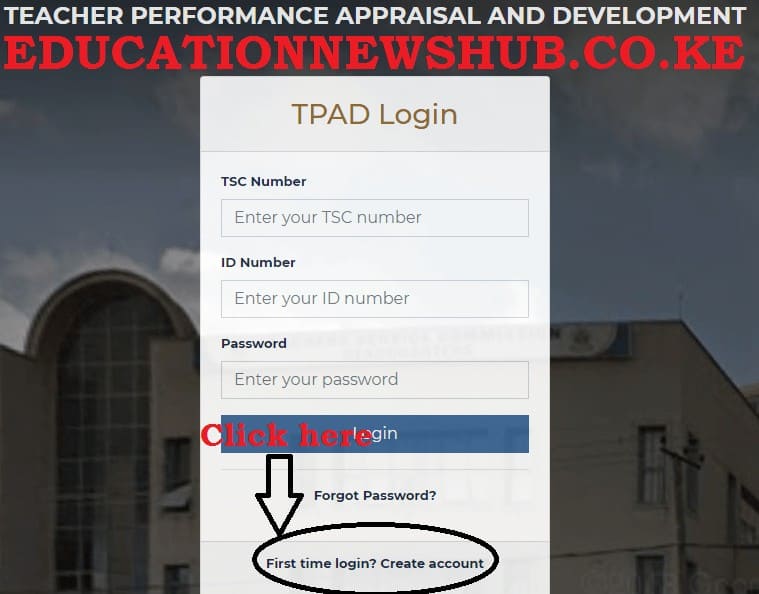
- You now select the ‘First time Login? Create account’ tab as indicated in the figure above.
- You will get the window shown below. Enter your details correctly and then click ‘Create Account’.
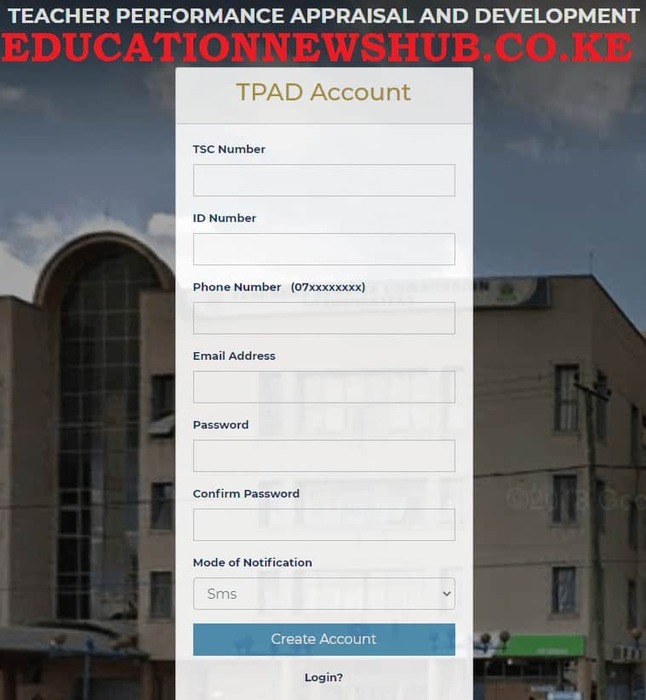
- Enter valid and correct information in the spaces provided. The details entered will be saved to enable login to the system and commence the appraisal process. Ensure the details entered are correct and click on “create account” button for verification and account creation.
- After the details entered are verified, a login view appears. Here, you should enter the details used in account creations ie. TSC number, ID number and Password for permission access to the system.
Related;
- How to create new TSC TPAD Account (https://tpad2.tsc.go.ke) for self Evaluation
- TSC- How to fill the TPAD 2 form online
TPAD Login portal
After successful account creation, the information entered is verified by the system and the portal below appears for the user to type in the credentials used at account creation in order to access the system.
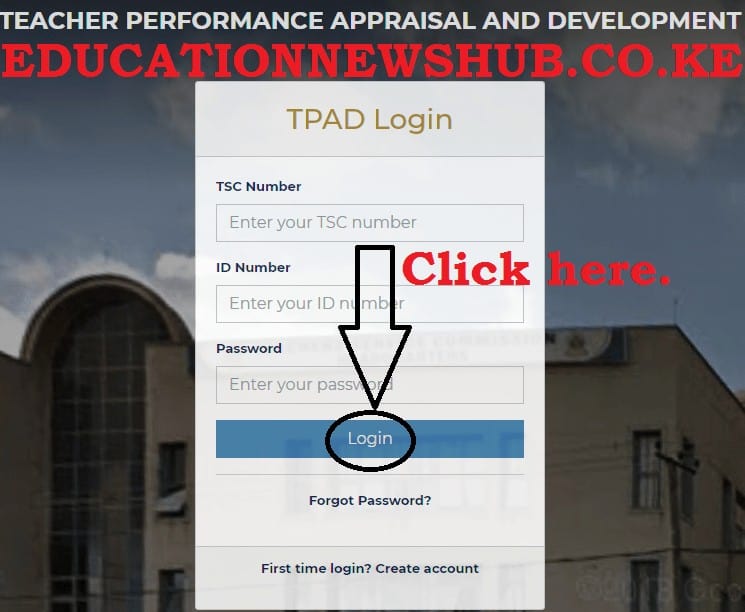
After entering the details, click on the “Login” button.
Teachers portal on TPAD 2
Upon successful authentication, the teacher accesses the landingpage/dashboard. Details that appear include:
- Teachers TSC number,
- Name,
- Current institution name,
- Institutions IPPD code (registration code),
- Institution level (either primary or secondary) and the users
- Current designation.
Your Personal Profile
You are required to update your personal profile. To do this;
- Click on his/her name appearing at the top right corner of the screen,
- select “My Profile”.
- Three tabs will be displayed under the “My Profile” feature namely; Personal Information, Teaching Subjects/Subjects Combination and My Password,
- Update the details, accordingly. After entering all the details, ensure you click on the “Save Changes” button for the changes to be effected in the system.
Changing your TPAD 2 password
On successful login, you can be able to change/reset the current password. To do this, you will be required to type in the current password used and the preferred password.
Fill in the spaces provided the following details: Old password, New password, Confirm password
Click on the “update password” for the new password to be saved.
RECOVERING YOUR FORGOTTEN PASSWORD
Did you forget your password? You can now easily recover/ reset your forgotten TPAD 2 password. To do this, follow these simple steps:
- From the TSC website;
- Click “Online services;
- Select “Teacher Appraisal;
- Click on “Login”
- Select your self service portal;
- Click on to “Forgot Password” tab;
- The system will prompt you to enter details in the “password recovery” landing page that appears.
- Enter your TSC Number and ID number correctly in order to recover your password. Click on the “Recover Password” button.
- A text message will be sent to the declared mobile phone number thus; “TSC-Kenya: Your new password is ‘1…..’”
- Now, click on the TPAD 2 ‘Login’ tab to enter the code received’. You can change to preferred password by using “My Profile” tab.
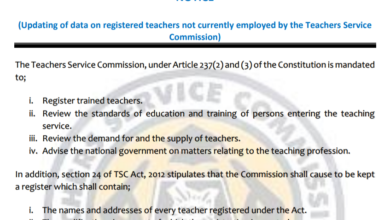 TSC Circular on Updating of data on registered teachers not currently employed by the Teachers Service Commission
 Mwalimu National Sacco Loans & Repayment Schedule (BOSA Loans)
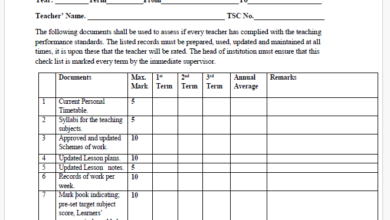 Latest TPAD Teacher’s Checklist of TSC Professional Documents
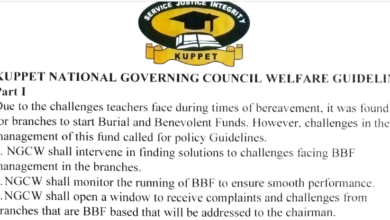 Official Kuppet BBF Guidelines For All Branches